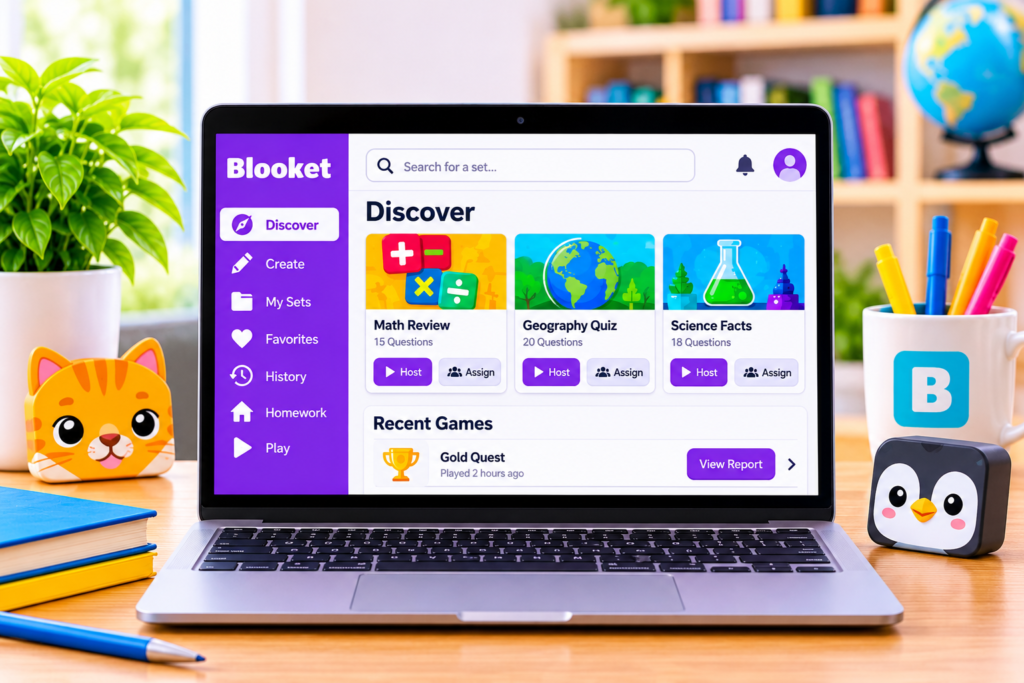
The bell is about to ring. Your class just finished a Gold Quest review game, the leaderboard is still on the screen, and one student is already asking to play again. You have about forty seconds before the room empties — and that is exactly enough time to learn something no paper quiz would ever tell you. Open the History tab, and the dashboard shows you the three questions half the class got wrong. That is tomorrow’s lesson plan, written by the game itself.
Most people never see that side of Blooket. They log in, host a game, and log out — but underneath the launcher sits a library of ready-made question sets, a homework system, and a report card for every session.
The first thing you see after you sign in
The dashboard is the home screen you land on after logging in to Blooket. It holds your question sets, your recent games, your token balance, your Blook collection, and the Market — everything in one place. It does not look the same for everyone: a teacher account and a student account open two different workspaces, because teachers need creation tools and reports while students need a fast way into games and a reason to return. Tabs and labels can shift with product updates, so a moved button is probably not your imagination.
What teachers actually do here
Discover is where the prep work disappears. Discover is Blooket’s public library of teacher-made question sets, and the most underused part of the dashboard. Search by keyword, subject, or grade level, preview any set, and copy the ones you like to your own library. Search like a teacher: “7th grade photosynthesis” returns far more usable sets than “biology” ever will. Many teachers skip Discover and build every set from scratch — hours of work the library already did.
Create is for the sets only you can write. When nothing in Discover fits, Create is where you build a question set from zero. Blooket supports several question formats and import options; the two teachers use most are spreadsheet (CSV) upload and Quizlet import.
My Sets is your personal library. Every set you create or copy lives here. From My Sets you can edit a set, share it, assign it as homework, play it solo, or host it live. It is also the first place to look when a set seems to have vanished — it is usually here under a name you no longer recognise.
Hosting a live game takes one click. From any set, click Host and Blooket hands you a Game ID, a QR code, and a direct join link. Students enter the Game ID at play.blooket.com, or scan the code, and they are in — no account needed. Starter hosts up to 60 players; Plus raises that to up to 300 in eligible modes.
Homework runs itself once you set it up. Pick a set, choose a game mode, set a due date, and share a link. Students complete it at their own pace, with or without an account; signed-in students earn XP and tokens for finishing. Starter deadlines go up to 14 days ahead; Plus extends that to 365 days.
History is where the teaching actually happens. History stores the reports from every game you host. Even the basic view shows which questions the class struggled with, and therefore what to re-teach. Deeper analysis and downloadable reports may depend on your plan and game mode. But the habit matters more than the detail — thirty seconds here after every session turns a game into a diagnostic.
What students see is a different world
Students who sign in get a simpler dashboard: fast entry into games, and their collection. The main action is joining — enter a Game ID at play.blooket.com and play. Homework arrives as a shared link or QR code from the teacher.
The part teachers sometimes miss is how much the collection matters. Logged-in players earn tokens and XP by playing live games, finishing homework while signed in, and spinning the daily wheel. Tokens buy Blook packs in the Market, and Blooks — the little character avatars — are why many students log in again tomorrow without being asked. Blooks are cosmetic and do not affect scores, which does not stop anyone from wanting the rare ones. The token calculator on this site shows the odds on each pack.
One warning: never use third-party tools or browser extensions that promise free tokens. They are a common source of stolen logins and malware, and the tokens they promise do not exist.
What the free plan covers and what Plus adds
Most teachers can run a full Blooket classroom on the free Starter plan. The three differences that matter: live game size, homework deadlines, and report detail.
| Feature | Blooket Starter (free) | Blooket Plus (paid) |
|---|---|---|
| Live players per game | Up to 60 | Up to 300 in eligible modes |
| Homework deadline | Up to 14 days | Up to 365 days |
| Reports | Standard reports | Enhanced reports with more detailed question and student data |
Plus also opens a set of Plus-only game modes. If your classes are under 60 students and standard reports answer your questions, Starter is enough. Prices change, so check the upgrade page inside your own account before deciding.
Your first five minutes on the dashboard
New here? Here is the fastest route through it.
- Search Discover for your next topic. Type something specific — a unit name and a grade level — and preview the first two or three sets. If one fits, copy it to My Sets.
- Open it and read the questions. Fix anything wrong, delete anything off-topic, and rename the set with the topic, question count, and grade level.
- Host it once, live, for yourself. Click Host, open play.blooket.com in another tab, and join your own game.
- End the game and open History. That is the view you will check after every real session.
- Spin the daily wheel. It takes seconds.
Five minutes, five habits, and the dashboard stops being a mystery.
Small habits that make the dashboard work harder
Name every set like you will own forty of them — because you will. “Unit 4 Cell Division — 25Q — 7th Grade” beats “Review Game” every time.
Rotate modes on the same set. The same questions play completely differently in Gold Quest, Tower Defense, Crypto Hack, or Café — the game changes while the content stays.
Build longer sets than you think you need. A short set runs out fast in modes where students play multiple rounds.
Treat tokens as a daily habit, not a binge. Tokens are capped at 500 per day, so short daily sessions earn more than one long cram session.
Mistakes that quietly waste the dashboard
Ignoring History. The reports are the teaching value — a game without a glance at the results is just a game.
Skipping Discover entirely. Building every set from scratch when the library already has good ones is the most common waste of prep time in Blooket.
Assuming students will find things on their own. A Game ID, a QR code, and a direct link are three doors to the same room — show first-timers which one to use.
Questions teachers ask most
Is the Blooket dashboard free to use?
Yes. Starter is free and covers set creation, the Discover library, live games for up to 60 players, homework deadlines up to 14 days ahead, and standard reports. Plus adds larger games, longer homework windows, enhanced reports, and extra modes.
Do students need an account to use Blooket?
No. Students can join a live game by entering a Game ID at play.blooket.com and playing as a guest, and they can complete homework from a shared link without an account. An account is worth it for students who want to save tokens, unlock Blooks, and track progress.
Where do I see the results of a game I just hosted?
In the History tab. Every hosted session appears there with the reports available for your plan and game mode.
Why can’t my students join the game I’m hosting?
Check the Game ID (digits get misread), the URL (play.blooket.com), and the student’s internet connection. If the dashboard itself will not load, try refreshing, then check with school IT whether Blooket is reachable from the school network.
The dashboard rewards the teachers who look past the launcher. Discover saves prep time, History tells you what to teach next, and the token system does the motivating for you. Start with one live game this week, then check the report — and for the full picture of how Blooket fits together, the Blooket guide on this site covers joining, codes, game modes, and tokens from the start. Ready to open yours? Open your dashboard: https://www.blooket.com/