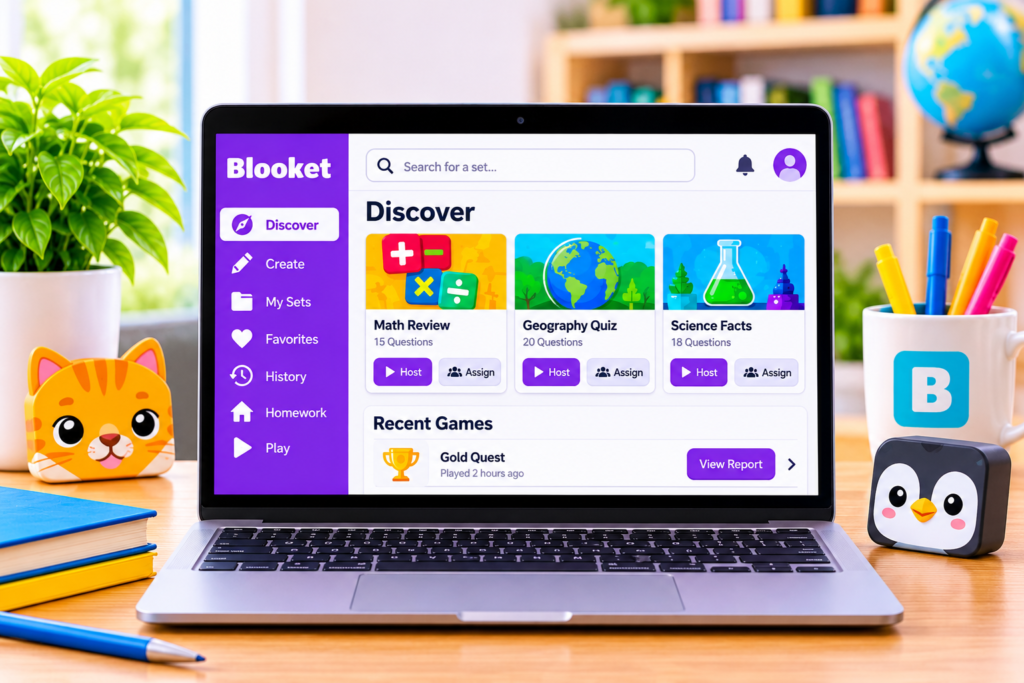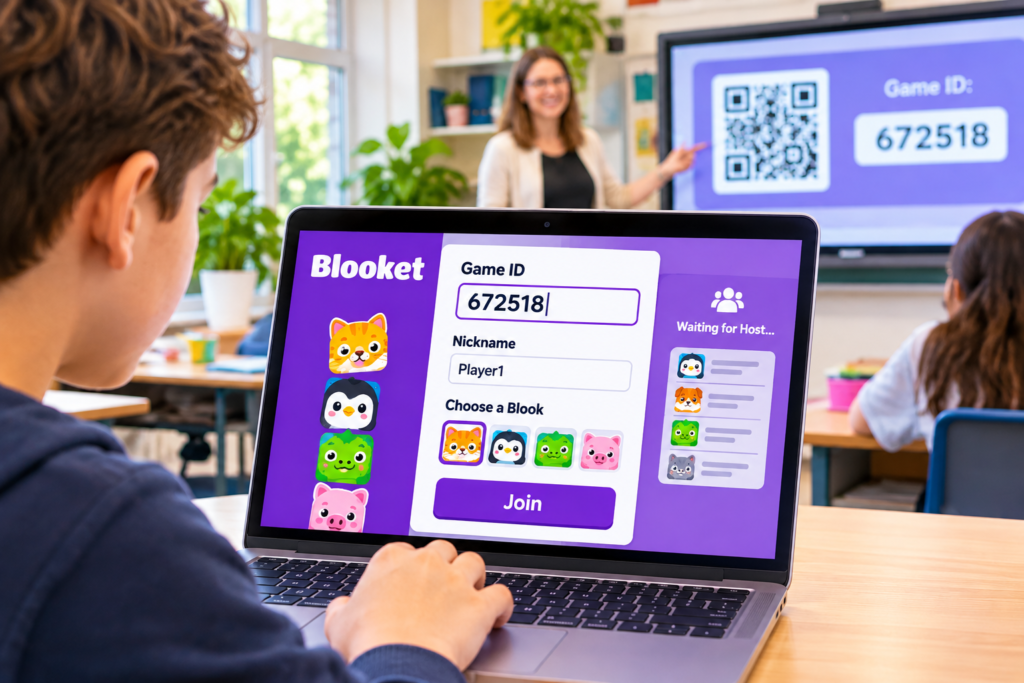
To join a Blooket game, open play.blooket.com, type the Game ID your teacher shared, pick a nickname, choose a Blook, and tap Join. No account. No download. No email. You are in the lobby in under a minute.
That is the clean path, and most days that is all you need. But classrooms are messy. The code gets rejected. The page half-loads. Your teacher hands you a QR code instead of numbers. Or a browser extension quietly blocks the join and nobody knows why. This guide covers all of it: every way in, every error you are likely to see, and the fix that actually works for each one.
Ready to join? Open the official Blooket Join page: https://play.blooket.com/play
Instant Access
Join a Blooket Game With Your Code
Got a Blooket join code from your teacher or host? Enter it below and we will take you straight to the official game lobby — no account needed to play.
You will be redirected to play.blooket.com — the official Blooket site. Codes only work while the host's game is live. Where do I find a code?
- Get the CodeYour teacher or host shares a 5–7 digit game code.
- Enter & JoinType it above or at play.blooket.com to enter the lobby.
- Pick Your BlookChoose a nickname and character before the game starts.
- Play & WinAnswer fast and correctly to climb the leaderboard.
The three ways to join a Blooket game
Most students only know one way in: the Game ID. There are three, and the best one depends on how your teacher shared the game.
| Method | What you need | Best for |
|---|---|---|
| Game ID | The code your teacher shares | A code written on the board |
| QR code | A phone camera | A game on the projector |
| Direct link | One tap on the link | Remote and hybrid classes |
All three drop you into the same lobby. If your teacher writes a code on the whiteboard, use the Game ID. If they drop a link in Google Classroom or Teams, tap it. If the game is on the projector at the front of the room, scan the QR code instead of squinting at digits from the back row.
How to join with a Game ID (the most common method)
This is the way most students join, and after your second game you will not need these steps again.
1. Get the code from your teacher. It is on the board, in the class chat, or read out loud. Copy it exactly as shown. Most failed joins start with a code remembered wrong while twenty classmates type at once.
2. Open your browser. Chrome, Safari, Edge, or Firefox — they all work, and there is nothing to install first.
3. Go to play.blooket.com. Type it straight into the address bar. This is the single biggest mistake students make: they land on blooket.com instead, which is the host dashboard, and then wonder why there is no Join button anywhere. Players join at play.blooket.com. Hosts log in at blooket.com.
4. Type in the code. Enter it exactly as your teacher shared it, with no spaces and no extra characters. If you want to know where these codes come from and why they never work twice, our Blooket Codes guide explains it in plain words.
5. Pick a nickname. Some teachers turn on random names, and then Blooket gives you one on its own. Otherwise you type your own. Pick something your teacher will recognize — they match the leaderboard to the class list.
6. Choose your Blook. Blooks are the little characters that stand for you in the game. For a guest join the choice is just for fun, so pick the one you like.
7. Tap Join. If the code is live and the lobby has room, you land in the waiting room. If you see “Invalid Game ID” instead, jump to the fixes below.
8. Wait for the host. The game has not started yet. You will see your name, your Blook, and the other players arriving one by one. Do not close the tab. If you leave, you join again from scratch.
9. Play. Questions show up, you answer them, and the game mode turns your answers into something: gold in Gold Quest, towers in Tower Defense, customers in Café, crypto in Crypto Hack. Question, answer, reward. That is the whole loop.
Joining with a QR code
The QR code usually sits on the host’s screen right next to the Game ID, which makes it the best option when the game is projected at the front of the room. Point your phone camera at it and tap the message that pops up. You land on the join page with the code already filled in. You still pick a nickname and a Blook, but the typing is gone.
One thing worth knowing: a QR code dies with the game, exactly like the Game ID. A screenshot of last week’s QR code is just a picture of a dead link.
Joining with a direct link
The direct link is the fastest way in on a laptop or Chromebook. Teachers share these in Google Classroom, Microsoft Teams, Zoom chat, or email. The link points to the play page with the Game ID already baked in, so one tap skips the code box completely. If it opens the Blooket homepage instead of a lobby, the game has ended or the host closed it, and you need a fresh link.
Can you join without an account?
Yes. This is the part that surprises most new players. Joining a live game needs no account at all. No email, no password, no sign-up form standing between you and the lobby. That is on purpose: a teacher with thirty students cannot spend the first ten minutes of class resetting passwords.
An account only matters when you want to keep things between games. Tokens, Blooks, and stats only stick around when you are logged in. Guests play and walk away with nothing saved. If you play every week, signing up is worth the two minutes — your tokens buy boxes in the Market, and our token calculator shows the odds for every box before you spend a single token.
Teachers always need an account, because hosting, question sets, homework, and reports all live behind the login. That side of Blooket is covered in our Blooket Login guide.
Blooket Join vs Blooket Login — what’s the difference?
Students mix these two up more than anything else on Blooket, and it is the reason so many joins fail before they start.
Joining is what players do. You go to play.blooket.com, type a code, pick a nickname and a Blook, and you are in a game. No account, no password, nothing to remember. When the game ends, you leave, and nothing about you is saved.
Logging in is what hosts do — and what regular players do when they want to keep their progress. You go to blooket.com and sign in with email and password, Google, or Clever. Behind the login live the question sets, the dashboard, the homework assignments, the post-game reports, and your tokens and Blook collection. Our Blooket Login guide walks through the whole sign-in side.
The rule is simple. If someone gave you a code for a game starting now, you are joining: play.blooket.com. If you are setting up a game, building a question set, or checking what you earned yesterday, you are logging in: blooket.com. Go to the wrong one and you will stare at a page with no Join button and no idea what went wrong.
Joining a specific game mode
Joining works the same way in every game mode. You do not pick the mode — your teacher does, before the game starts. You join the lobby the same way, and the mode only changes what happens after the first question.
Gold Quest turns right answers into gold, and the richest player wins. Tower Defense turns right answers into towers that hold back the waves. Café turns right answers into food and customers for your little restaurant. Crypto Hack turns right answers into crypto you can steal from each other. Battle Royale pits you head to head until one player is left. Fishing Frenzy is the calm one: answer, fish, and hope for something rare.
If you want the full picture of every mode before you play, our Blooket Play guide covers them all.
When it doesn’t work — fixing the common errors
Most failed joins come down to a handful of causes, and nearly all of them have a quick fix.
“Invalid Game ID” usually means a typo — but not always. Re-read the code first. A 1 read as a 7, or a 0 read as a 6, is the most common cause of all. If the digits are right, the game has probably ended. Teachers close lobbies between class periods, and a finished game’s code never comes back. If the code worked five minutes ago and does not now, the host may have locked the lobby, and only the host can open it again.
The page will not load at all. Open any other website to check your internet. If other sites load but Blooket does not, the school network is filtering it. Tell your teacher — the fix is a request to the school’s IT team, not something you can do from your seat.
The Join button spins forever, or the page looks half-loaded. Ad blockers (uBlock Origin, AdBlock Plus) and strict privacy extensions can block the scripts Blooket uses to check a code and load the lobby. Turn extensions off for play.blooket.com, or try an incognito window, where extensions are usually off by default.
The game loads but never connects. Blooket runs its live game state on Firebase, and strict school firewalls sometimes block it even when blooket.com itself loads fine. If the lobby opens but players never appear, or answers never register, the school filter is the likely cause. The fix is a request to the school’s IT team to add firebaseio.com to the allow-list next to blooket.com. Tell your teacher.
You got kicked out mid-game. Blooket runs on a live connection, so a Wi-Fi dip, a tab pushed to the background, or a phone going to sleep can drop you. Rejoin through the same code or link. If the host turned on late joining, you land straight back in.
The lobby is full. On Blooket’s free plan, a lobby holds up to 60 players, and a host on Blooket Plus can raise that limit. If the lobby is at its cap, wait for the next round.
A code from the internet never works. A code is made fresh when a host clicks Host, and it works only while that one game is running. Codes listed on random sites were real once, for someone else’s class, for a few minutes — and they are dead by the time you read them. The only code that works for you is one a host gives you right now, for a game that is live right now. Homework works differently: a teacher assigns a game as homework, and that assignment link works until its due date, but it is still tied to that one assignment.
Joining Blooket on different devices
The join flow is the same on every device, because it is just a browser page. A few device notes are still worth knowing.
Chromebooks are the most common school device, and they work fine in Chrome. Stay on school Wi-Fi rather than a personal hotspot, and remember that a school-managed Chromebook often has no camera — which puts you back on the Game ID method instead of the QR code.
Phones and tablets join the same way, and they have one advantage: the camera makes QR codes instant. The risk runs the other way. A phone that locks its screen to save battery, or a tablet with the browser pushed to the background, drops the live connection and can kick you out mid-game. Keep the tab in front and the screen awake until the game ends.
Laptops and desktops are the simplest of all. The direct link method shines here, because there is no typing and no camera involved. One click and you are picking a nickname.
For teachers: how to make your game joinable
Show the QR code next to the Game ID so students with phones can skip the typing, and drop the direct link in your classroom chat for remote students. Say the code out loud as well as writing it: a digit read wrong from the back row costs a minute of class time. Decide before you start whether late joining is on or off, and tell the class. After the game, check the dashboard reports to see exactly which questions the class got wrong — our Blooket Dashboard guide shows what every part of the dashboard does. And if you are hosting for the first time, our Blooket Host guide walks through the setup step by step.
Is Blooket Join safe for students?
Joining is about as low-risk as anything on the internet gets, because joining asks for almost nothing. No email, no password, no real name, no download. The only thing you type is a nickname — and your teacher sees it on the leaderboard, so pick one you would not mind them reading out loud.
The host runs the room. They see every player who joins, they can lock the lobby once everyone is in, and they can remove a player who does not belong. A random person cannot wander into your class game: they would need the live code, and the code only exists while the game is running. That is also why codes from the internet never work — by the time a stranger finds one, the game is over.
One habit is still worth building. Join from the link or code your teacher gives you, not from a code you found on a random site. Your teacher’s code is the only one that leads to your class.
Frequently asked questions
Do I need the Blooket app to join a game?
No. Blooket runs in the browser, and joining works from any device with one: Chromebook, laptop, tablet, or phone.
Why does the same code work for my friend but not for me?
Usually a typo, a full lobby, or a locked lobby. Re-check the digits first. If they are right, ask your host whether the lobby is locked or full.
Can I join a game that already started?
Only if the host turned on late joining. Some hosts leave the door open. Others lock it the moment the first question appears. Join late and you start from wherever the game is — already behind.
How long does a Blooket code last?
As long as the game it belongs to. When the host ends the game, the code stops working right away and is never used again. Homework links last until their due date instead, because they are tied to the assignment, not a live session.
Do I keep my tokens if I join without an account?
No. Guests play and walk away with nothing saved. Tokens, Blooks, and stats only stick around when you are logged in — which is the one real reason to create an account.
Closing
Joining a Blooket game is a thirty-second job once you know which door to use: the code on the board, the QR code on the projector, or the link in your class chat. When it works, it just works. When it does not, the cause is almost always one of the handful covered above — a typo, a finished game, a locked lobby, or a network getting in the way — and now you know which one to check first. For everything else Blooket, our Blooket guide covers the whole game, from login to hosting.