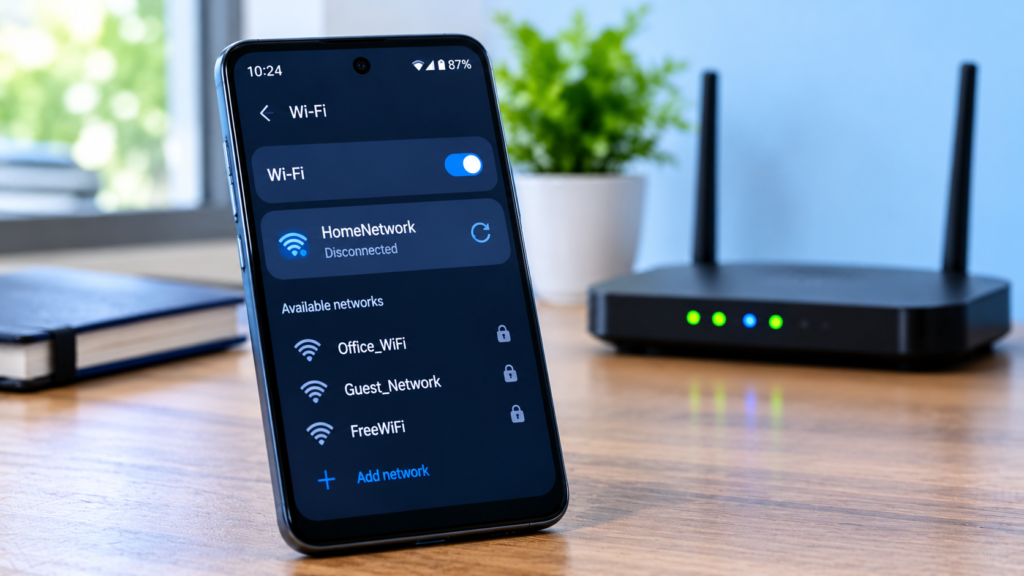
Android WiFi keeps disconnecting can be frustrating, especially when you are browsing the internet, watching videos, downloading files, or attending online meetings. Your phone may connect to a wireless network successfully but lose the connection after a few minutes. In some cases, WiFi disconnects automatically when the screen turns off or repeatedly reconnects without any action.
This issue can happen because of weak WiFi signals, router problems, incorrect network settings, outdated software, or temporary system glitches. Fortunately, you can try several troubleshooting methods before considering professional repair.
In this guide, you will learn why your Android phone keeps disconnecting from WiFi and how to fix the problem using practical solutions.
Why Does My Android WiFi Keep Disconnecting?
There are several reasons why an Android phone may lose its wireless connection unexpectedly.
Some common causes include:
- Weak WiFi signal: Your phone may be too far from the router or separated by walls and other obstacles.
- Router problems: Temporary router errors or outdated firmware can interrupt wireless connections.
- Incorrect network settings: Corrupted saved network information may prevent your phone from maintaining a stable connection.
- Software glitches: An outdated Android version or temporary system issue can affect WiFi performance.
- Battery-saving features: Certain device settings may change how background connectivity works.
- Third-party applications: VPNs and network-management applications may sometimes interfere with wireless connections.
Understanding the possible cause can help you choose the right solution instead of changing several settings unnecessarily.
9 Ways to Fix Android WiFi Keeps Disconnecting
1. Restart Your Android Phone
Restarting your phone is one of the easiest ways to resolve temporary software problems.
Sometimes, background processes or minor system errors interfere with wireless connectivity. Restarting your device refreshes these processes and allows Android to establish a new network connection.
Follow these steps:
- Press and hold your phone’s power button.
- Select Restart from the power menu.
- Wait for your phone to start again.
- Open WiFi settings.
- Connect to your wireless network and test the connection.
If your Android WiFi continues disconnecting, try the next solution.
2. Check Your WiFi Signal Strength
A weak wireless signal can cause your Android phone to disconnect repeatedly.
This commonly happens when you use your phone far away from the router or in an area with poor wireless coverage.
Try these steps:
- Move closer to your WiFi router.
- Check the WiFi signal indicator on your phone.
- Open a website to test the connection.
- Move to another room and observe whether the connection becomes unstable again.
If WiFi works properly near the router but disconnects in another room, weak signal coverage may be responsible.
You can also test another device on the same network. If multiple devices experience the same issue, investigate the router or wireless coverage.
3. Turn WiFi Off and On Again
Refreshing your wireless connection can sometimes resolve temporary connectivity problems.
To do this:
- Open Settings on your Android phone.
- Select Network & Internet or Connections.
- Tap Internet or WiFi.
- Turn WiFi off.
- Wait approximately 10 seconds.
- Turn WiFi back on.
- Select your network and reconnect.
The exact settings may vary depending on your Android version and phone manufacturer.
4. Restart Your WiFi Router
Sometimes, the problem is not your Android phone. Your wireless router may be experiencing temporary connection issues.
If other devices also disconnect from the same network, restarting the router is worth trying.
Follow these steps:
- Disconnect the router from its power source.
- Wait approximately 30 seconds.
- Connect the power cable again.
- Allow the router to restart completely.
- Reconnect your Android phone to the network.
Check whether other devices can maintain a stable connection afterward.
If several devices continue disconnecting, contact your internet service provider or router manufacturer.
5. Forget the WiFi Network and Reconnect
Android saves wireless network information so your phone can reconnect automatically.
However, outdated or incorrect saved network information may sometimes cause connection problems.
Forgetting the network removes its saved connection details and allows you to establish a fresh connection.
Here is how:
- Open Settings on your Android phone.
- Navigate to WiFi or Internet.
- Select your connected wireless network.
- Tap Forget or Forget Network.
- Return to the available network list.
- Select your WiFi network again.
- Enter the correct password.
Make sure you know your WiFi password before forgetting the network.
6. Check for Android Software Updates
Outdated system software can sometimes contribute to connectivity problems.
Manufacturers regularly release software updates that may include bug fixes, security improvements, and device compatibility changes.
To check for an available update:
- Open your phone’s Settings.
- Select System or Software Update.
- Tap Check for Updates.
- If an update is available, follow the instructions displayed on your device.
- Restart your phone if required.
The exact menu location depends on your phone manufacturer.
If the WiFi problem started immediately after an update, check your manufacturer’s support information for your particular device and software version.
7. Check Whether a Third-Party App Is Causing the Problem
Some downloaded applications can interfere with wireless connectivity.
For example, certain VPN, firewall, security, or network-management applications may change how your phone handles network connections.
Android Safe Mode can help determine whether a downloaded application is responsible.
On supported Android devices:
- Open the power menu.
- Press and hold the Power off option.
- Select Safe Mode if your device displays the option.
- Allow your phone to restart.
- Connect to your WiFi network and observe the connection.
If WiFi works normally in Safe Mode, a downloaded application may be responsible.
Restart your phone to exit Safe Mode. Then review recently installed applications and their network-related settings.
Safe Mode procedures vary between manufacturers, so consult your device manufacturer’s instructions if necessary.
8. Check Your Phone’s Network and Battery Settings
Incorrect network configurations or certain connectivity preferences can sometimes affect wireless connections.
Start by reviewing the following settings:
- Automatic network switching
- Adaptive Connectivity
- Battery Saver
- VPN connections
- Private DNS
- WiFi connection preferences
Avoid changing several settings simultaneously. Adjust one setting at a time and test your connection.
If your phone disconnects mainly when the screen turns off, check whether a battery-saving feature or network-management application is affecting background connectivity.
9. Reset Network Settings
If the previous methods have not resolved the issue, resetting network settings may help.
This restores network-related configurations to their default state without performing a complete factory reset.
However, depending on your device, this process may remove saved WiFi networks, Bluetooth pairings, and other network preferences.
On many Android devices, follow these steps:
- Open Settings.
- Select System or General Management.
- Find Reset Options or Reset.
- Select Reset WiFi, Mobile & Bluetooth or the equivalent network reset option.
- Review the information displayed on your phone.
- Confirm the reset.
- Reconnect to your wireless network.
Menu names and reset options vary by manufacturer and Android version.
Make sure you have your WiFi password available before proceeding.
How to Fix Android WiFi That Disconnects When the Screen Is Off
Some users experience a specific problem: WiFi works normally while they are using their phones but disconnects when the screen turns off.
This situation may involve connectivity preferences, power-management behavior, or router-related issues.
Try these checks:
- Review your phone’s WiFi and battery settings.
- Check whether Battery Saver is enabled.
- Review Adaptive Connectivity settings on supported Pixel devices.
- Test the connection with another wireless network.
- Check whether recently installed network-management applications are interfering.
Do not assume that every screen-off disconnection is caused by battery optimization. Testing another network can help identify whether the problem comes from your phone or router.
How to Fix WiFi Disconnection Problems on Samsung Galaxy Phones
Samsung Galaxy devices include additional network and diagnostic settings.
If your Samsung phone keeps disconnecting from WiFi, try these steps:
- Open Settings and select Connections.
- Tap WiFi and check your connected network.
- Forget the affected network and reconnect.
- Check whether a software update is available.
- Test the connection in Safe Mode.
- If the problem continues, consider resetting WiFi and Bluetooth settings.
Samsung also provides WiFi diagnostics through the Samsung Members application on supported Galaxy devices.
For additional device-specific troubleshooting, visit the official Samsung WiFi support guide.
Frequently Asked Questions
Why does my Android phone keep disconnecting from WiFi?
Common reasons include weak signal strength, router problems, temporary software errors, incorrect network configurations, and interference from downloaded applications.
Why does WiFi disconnect when my Android screen turns off?
This may be related to connectivity preferences, battery-management behavior, or network problems. Check your phone’s settings and compare the connection using another WiFi network.
Why does my Android WiFi keep turning off automatically?
Temporary software problems, device settings, or third-party applications may affect WiFi behavior. Restart your phone, review connectivity settings, and check for software updates.
Can a router cause Android WiFi disconnections?
Yes. Router errors, weak wireless coverage, outdated firmware, and network interruptions can affect multiple connected devices.
Should I factory reset my Android phone to fix WiFi problems?
A factory reset should not be your first troubleshooting step. Try restarting your phone, reconnecting to the network, checking software updates, and resetting network settings first.
How do I know whether my phone or router is causing the problem?
Connect another device to the same WiFi network. If several devices disconnect, investigate the router or internet connection. If only your Android phone has the issue, focus on its settings and software.
Final Thoughts
Android WiFi keeps disconnecting for several possible reasons, and identifying the actual cause is the first step toward finding a lasting solution.
Start with simple troubleshooting methods, such as restarting your phone, checking signal strength, and reconnecting to your wireless network. If those steps do not help, investigate software updates, downloaded applications, and network settings.
Avoid resetting your entire device unless other troubleshooting options have failed. In many cases, identifying whether the problem comes from your phone or router can make the solution much easier.
For general Android connectivity troubleshooting, you can also consult [Google’s official Android