The bell rings, the teacher writes a code on the board, and thirty students open their laptops at once. Half of them are in within seconds. The other half are staring at a login screen, trying to remember a password they set once, months ago, and never used again. If you are in the second half, this guide is for you.
Open Blooket’s official site: https://www.blooket.com/
What Blooket login actually means
A Blooket account is mostly a teacher thing. Teachers need an account to create question sets, host games, and see how the class did afterwards. Students usually do not need one at all. A student joins a game with a code and a nickname, plays, and leaves — no account, no password, nothing to remember.
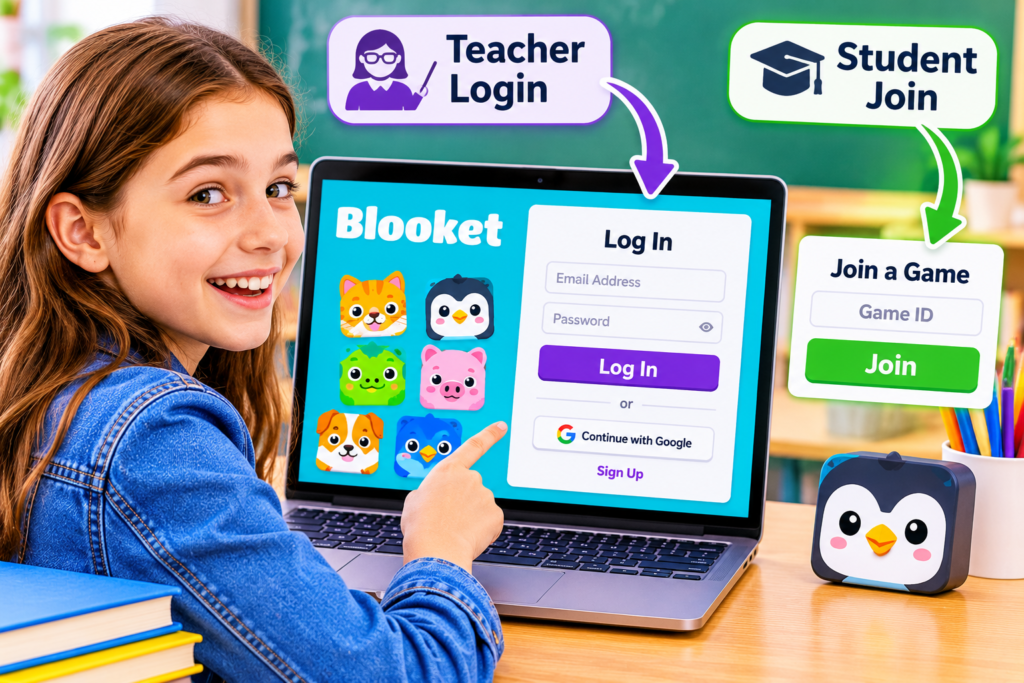
So “login” means two different things depending on who you are. If you are a teacher, logging in opens your whole workspace. If you are a student, you probably do not need to log in at all — you just need the code for today’s game. Knowing which one you are saves most of the confusion people run into on this screen.
How to log in as a teacher
Logging in as a teacher takes under a minute once you know the steps:
- Open blooket.com in your browser.
- Click Log In at the top of the page.
- Enter the email address you signed up with and your password, then click Log In.
- You land on your dashboard, where your question sets, hosted games, and reports live.
If you have never had a Blooket account, click Sign Up instead of Log In. You can sign up with an email address or with Google, and Blooket will ask a few setup questions to get your account ready. Once you are in, you land on your dashboard — our Blooket Dashboard guide walks through everything on that screen.
How to log in as a student
Students fall into two groups. If your teacher created an account for you, or you made one yourself, log in the same way as a teacher: blooket.com, Log In, email and password or Google.
If nobody gave you an account, do not try to make one on the spot. You do not need it. Instead, you join with a code — here is how to join a Blooket game with a code. Type the code your teacher shared, pick a nickname, and you are in the game. No password, no signup form, no waiting.
This is the part most students get wrong. They see a login screen and assume they are locked out, when all they actually need is the game code. If your teacher gave you a code, skip the login entirely and join the game.
Logging in with Google
If you signed up with Google, the Google button is your login. Click Log In, then choose the Google option, pick your Google account, and you are in — no Blooket password involved at all.
This is the fastest route for most school users, because schools already run on Google accounts. One thing to watch: if you try to log in with an email and password but your account was created through Google, Blooket will not recognise the password, because there never was one. In that case, always use the Google button instead.
Login not working? Fix the common errors
Wrong password. Use the Forgot password link on the login page. Blooket sends a reset email to the address on your account — check your inbox and your spam folder, then follow the link to choose a new password.
“Account not found” or email not recognised. You probably signed up a different way than you remember. Try the Google button first — most people who see this message created their account through Google. If that does not work, try any other email address you might have used.
The page will not load or keeps spinning. Refresh the page and try again. If it still will not load, try a different browser, or clear your browser’s cache and cookies for the site. School wifi sometimes blocks game sites, so if you are on a school network and the page never loads, try the browser your school normally allows, or ask your school’s IT support.
You are logged in but the game will not start. That is usually a joining problem, not a login problem. Your account is fine — the game itself may not have started yet, or the code may have changed. Ask your teacher whether the game is live and whether the code on the board is the current one.
Blooket login vs Blooket join — what’s the difference?
| Login | Join | |
|---|---|---|
| Who it is for | Teachers, and students with accounts | Any student with a game code |
| What you need | Email and password, or Google | A game code and a nickname |
| What it opens | Your account and dashboard | One game, for one session |
| When you use it | Before class, to set things up | During class, to play |
The short version: login is how you get into your own account, join is how you get into one game. Teachers log in. Students mostly just join. Mixing the two up is the most common reason anyone gets stuck on this site.
Is it safe to log in to Blooket?
Yes, as long as you log in on the real site. Always check that the address in your browser is blooket.com before typing your password — never enter it on a lookalike page. Do not share your password with anyone, and log out when you are finished on a shared school computer so the next student does not open your account by accident.
Students joining with a code share nothing personal at all. All Blooket asks for is a nickname, and that nickname is only visible inside the game. There is no account to protect, because there is no account.
Frequently asked questions
Do students need a Blooket account to play?
No. Students join a game with a code and a nickname. An account is only needed if the student wants to save progress, collect Blooks, or keep their own question sets.
I forgot my password. What now?
Click Forgot password on the login page. Blooket emails a reset link to the address on your account. If the email does not arrive, check your spam folder, then try again — and make sure you are checking the same email address you signed up with.
Can I log in on a phone or tablet?
Yes. Blooket works in the browser on phones and tablets the same way it works on a laptop. Open blooket.com, tap Log In, and sign in with your email or Google.
Why does Blooket say my email isn’t recognised?
Most often, the account was created through Google, so there is no email-and-password login for it — use the Google button instead. Otherwise, you may be trying a different email address than the one you signed up with.
Closing
Login only feels complicated when you are on the wrong route. Teachers log in with an email or Google and land on their dashboard. Students skip the whole thing and join with a code. Once you know which one you are, the whole thing takes less than a minute — and the game is waiting.