ave you received a Blooket homework link but don’t know how to complete it? Or are you a teacher who wants to assign students an activity they can finish outside the classroom? Blooket homework makes both tasks easier. Teachers can create assignments from question sets, choose a completion goal, and share a link or QR code. Students can then open the assignment, select an available game mode, and answer questions at their own pace.
Whether you’re assigning homework or completing it as a student, this guide explains everything step by step. You’ll also learn how the Correct Goal works, how teachers check results, and how to fix common problems.
What Is Blooket Homework?
Blooket homework is a self-paced learning activity that allows students to answer questions without joining a live classroom game. Teachers create an assignment using a question set, select a completion goal, and share it with their students.
Students can access the assignment through a homework link or QR code. They don’t need to wait for the teacher to start a live session or for other students to join.
The main purpose of Blooket homework is to help students practice lessons independently while giving teachers a way to review their progress.
Here are some important features:
- Self-paced learning: Students can complete assignments independently.
- Homework link: Teachers can share a direct link with their class.
- QR code access: Students can scan a code instead of typing a link.
- Game mode selection: Students can choose from the modes allowed by their teacher.
- Completion goal: Teachers decide how many correct answers or total questions are required.
- Assignment deadline: Teachers can set a due date for the homework.
How to Assign Blooket Homework as a Teacher
Creating a Blooket homework assignment is straightforward. Teachers only need a question set and a few minutes to configure the assignment settings.
Follow these steps to get started.
1. Choose a Question Set
First, log in to your Blooket teacher account.
Open Discover to find a public question set, or visit My Sets to select a set you’ve created or saved previously.
Choose a question set that matches the topic you want your students to practice. For example, you might select a mathematics set for multiplication practice or a science set for a chapter review.
Before continuing, check the questions to make sure they’re suitable for your students.
2. Select the Assign Homework Option
Open the question set’s preview page and look for the Assign HW option.
If you’re using a question set from My Sets, you can also open its menu and select the assignment option.
Blooket will take you to the homework settings page, where you can customize the assignment before sharing it with students.
3. Set the Homework Title and Due Date
Give your assignment a clear title so students can recognize it easily.
For example:
- Grade 6 Science Homework
- Chapter 4 Vocabulary Practice
- Weekly Math Revision
- English Grammar Review
Next, choose the due date and time.
The deadline tells students when they must complete the assignment. According to Blooket’s current documentation, Starter (free) accounts can schedule homework up to 14 days ahead, while Plus accounts can schedule it up to 365 days ahead.
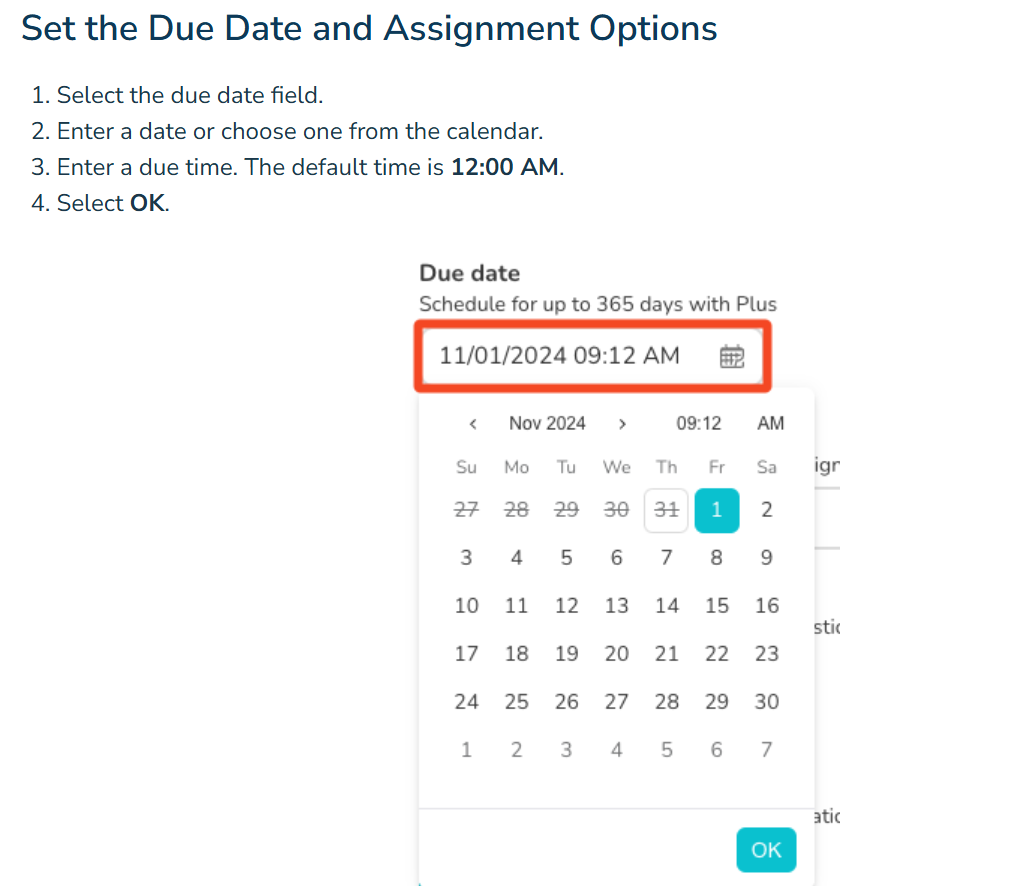
Once the assignment closes, students can no longer access it through the homework link.
4. Choose the Correct Goal
The homework goal is one of the most important settings because it determines what students must do to complete the assignment.
Blooket offers two goal types:
| Goal Type | How It Works |
|---|---|
| Correct Answers | Students must answer a selected number of questions correctly. |
| Questions | Students must answer a selected total number of questions, whether their answers are correct or incorrect. |
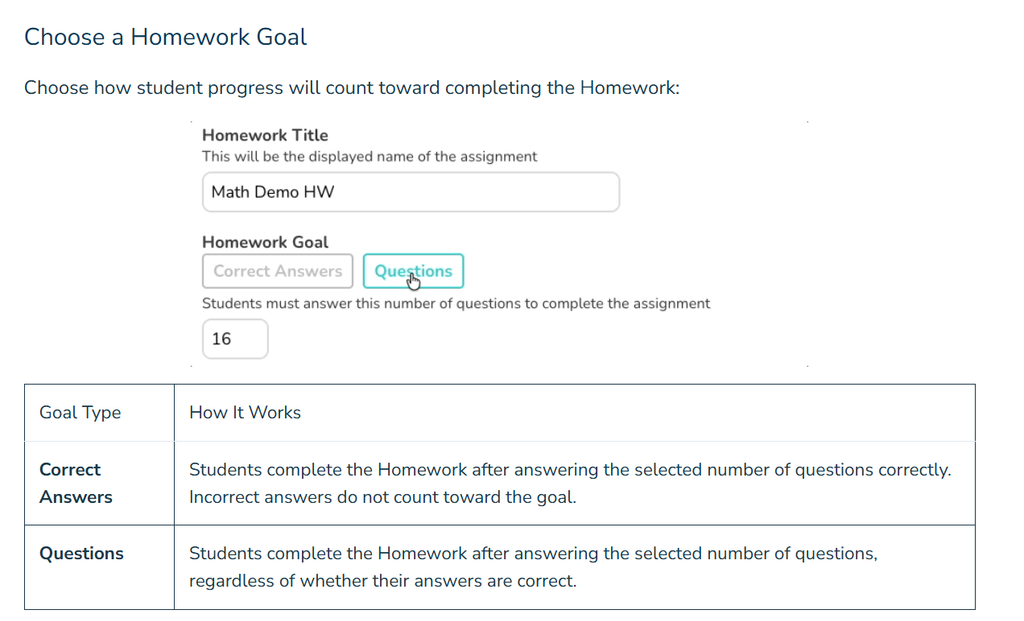
For example, suppose you set a goal of 20 Correct Answers. Students must get 20 questions right to complete the assignment.
If you select 20 Questions, students only need to answer 20 questions in total. Their accuracy is still recorded in the homework report.
Which goal should teachers choose?
Use Correct Answers when you want students to demonstrate their understanding of a topic. Choose Questions when you want every student to answer a specific number of questions for additional practice.
Also consider the number of questions in your question set. If your goal is higher than the number of questions available, some questions may appear more than once.
5. Choose the Available Game Modes
Blooket allows teachers to control which game modes students can use for homework.
You can enable all available homework game modes or turn that option off and select specific modes.
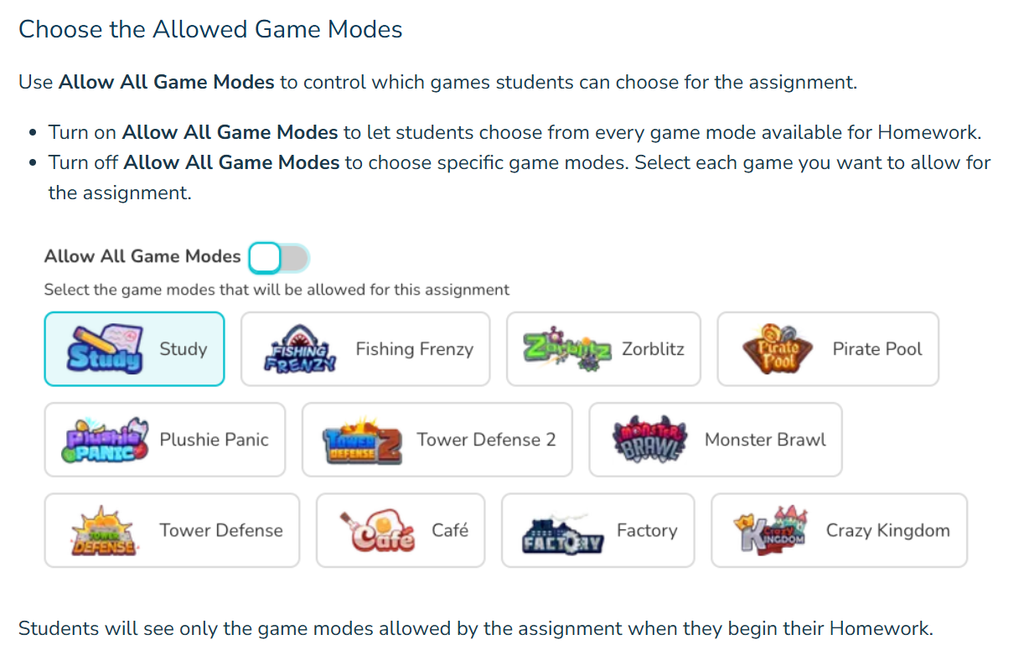
For example, if you want students to have more freedom, allow all available modes. If you prefer everyone to use a particular game, restrict the assignment to that mode.
Students will only see the game modes permitted by the assignment settings.
6. Assign and Share the Homework
Once you’ve reviewed all the settings, select Assign Now.
Blooket will generate a homework link and QR code for your assignment.
You can share either option through:
- Google Classroom
- Your school’s learning platform
- A classroom website
- A direct message to students
After sharing the link or QR code, students can start their homework whenever they’re ready, as long as the assignment is still open.
How to Complete Blooket Homework as a Student
If your teacher has already assigned homework, you don’t need to create anything yourself. Just follow these steps to open the assignment and complete it.
1. Open the Homework Link or Scan the QR Code
Your teacher will provide a homework link or QR code.
If you receive a link, click it to open the assignment in your browser. If your teacher shares a QR code, scan it using your phone or tablet camera.
Both options take you to the homework details page.
2. Check the Homework Details
Before starting, check the information displayed on the screen.
You should see details such as:
- Homework title
- Teacher’s name
- Due date
- Completion goal
Make sure you’ve opened the correct assignment. Pay particular attention to the goal because it tells you how much work is required.
3. Click Get Started and Choose a Game Mode
After reviewing the assignment details, click Get Started.
You’ll see the game modes available for that homework assignment. Your teacher controls which modes are allowed, so you may not see every Blooket game.
You can select a game mode that looks interesting and preview it before playing.
When you’ve made your choice, click Play to begin.
4. Enter Your Nickname
Blooket will ask you to enter a nickname before starting the game.
Choose a name your teacher can recognize. For example, you can use your first name and last initial.
Avoid random nicknames because your teacher uses the displayed name to identify students in the homework results.
5. Answer Questions and Complete the Goal
Now you can start playing.
Read each question carefully and select the answer you believe is correct. Keep an eye on your progress because Blooket displays the remaining homework goal during gameplay.
If your assignment requires 15 correct answers, continue playing until you reach that target.
Once you meet the goal, a Homework Complete! message will appear.
You can choose to keep playing for extra practice or end the assignment and review your results.
Important: Blooket currently recommends completing homework in one session. If you close the browser window or leave the tab inactive for too long, you may need to restart using the original homework link or QR code.
6. View Your Homework Results
After finishing the assignment, you can review your performance.
Depending on the available options, the results screen can show your accuracy and question-level performance.
You can also select View Details to review individual questions and understand which answers you got right or wrong.
For more help with the student process, see the official Blooket guide to completing homework.
Do You Need a Blooket Account to Complete Homework?
No. Students don’t need to create a Blooket account to complete a homework assignment.
They can simply open the link or scan the QR code shared by their teacher and start playing.
However, students who are logged in can earn XP and tokens while completing homework.
Students who need help accessing their accounts can follow our Blooket login guide to understand the login process and solve common sign-in problems.
Blooket Homework vs. Live Games
Blooket homework and live games both use question sets, but they serve different purposes.
A live game is designed for students who play together during a classroom session. Homework is designed for independent practice that students can complete before a deadline.
If you’re joining a live classroom session instead, follow our guide on how to join a Blooket game to learn how to enter using a Game ID, link, or QR code.
Here are the main differences:
| Feature | Blooket Homework | Live Blooket Game |
|---|---|---|
| Playing time | Self-paced | Played together |
| Teacher hosting | Not required during play | Required to start the session |
| Access method | Homework link or QR code | Game ID, link, or QR code |
| Game selection | Students choose from allowed modes | Host selects the game |
| Deadline | Teacher can set a deadline | No homework deadline |
| Main purpose | Independent practice | Classroom activity |
If your teacher wants everyone to participate at the same time, a live game is a better option. If students need to practice independently, homework is more suitable.
How Can Teachers Check Blooket Homework Results?
After assigning homework, teachers can review student performance from their Blooket account.
To access the results:
- Log in to your Blooket teacher account.
- Open the Homework tab.
- Select the assignment you want to review.
- Scroll down to the homework overview.
- Check the student leaderboard and question details.
The report can include useful information such as:
| Report Detail | What Teachers Can See |
|---|---|
| Student name | The nickname entered by each student |
| Accuracy | How accurately the student answered |
| Question breakdown | Performance on individual questions |
| Time played | How long the student played |
| Completion | Whether the student met the assignment goal |
Blooket Plus subscribers also have access to additional reporting features, including expanded student information and spreadsheet downloads.
These reports help teachers identify difficult questions and understand which topics may need more classroom practice.
How to Fix Common Blooket Homework Problems
Sometimes students may experience problems while opening or completing an assignment. Most issues can be solved by checking the homework link, browser, or assignment settings.
Blooket Homework Link Is Not Working
If the homework link doesn’t open, first check whether you’ve copied the complete link shared by your teacher.
The assignment may also have passed its due date.
Try refreshing the page or opening the link in another browser. If the problem continues, ask your teacher to confirm that the assignment is still available and share the link again.
QR Code Is Not Scanning
If your device cannot scan the homework QR code, check that your camera has permission to access QR scanning.
You can also:
- Clean your camera lens.
- Move closer to the QR code.
- Improve the lighting.
- Make sure the entire code is visible.
If scanning still doesn’t work, ask your teacher for the direct homework link.
Homework Is Not Showing as Complete
If Blooket doesn’t show your assignment as complete, check the goal selected by your teacher.
For example, answering 20 questions does not necessarily mean you’ve completed a goal of 20 Correct Answers.
Make sure you’ve reached the correct target and seen the Homework Complete message.
If the issue continues, ask your teacher to check the assignment report.
I Closed the Homework Tab by Mistake
Blooket recommends completing homework in one session.
If you close the tab or leave it inactive for too long, you may need to open the original homework link or scan the QR code again and restart the assignment.
Try to complete your homework in one sitting to avoid losing your session.
I Cannot Find My Preferred Game Mode
Your teacher may have restricted the available game modes.
Return to the game selection screen and choose one of the modes shown there. If you believe another game should be available, ask your teacher to check the homework settings.
Frequently Asked Questions
Can I complete Blooket homework without logging in?
Yes. You can complete homework using the link or QR code shared by your teacher. A Blooket account is optional, although logging in allows you to earn XP and tokens.
Can students choose their own game mode?
Yes. Students can choose from the game modes their teacher has allowed for the assignment. They can preview the available modes before starting.
How long does Blooket homework stay available?
The teacher selects the due date when creating the assignment. Starter accounts can schedule homework up to 14 days ahead, while Plus accounts can schedule it up to 365 days ahead.
Can teachers see who completed Blooket homework?
Yes. Teachers can review the assignment report to see student names, accuracy, question breakdown, time played, and completion information.
Can I change my game mode during homework?
Yes. Blooket allows students to exit their current game and return to the available game selection screen. They can then select another mode permitted by the teacher.
What happens if I don’t finish before the due date?
Once the assignment closes, students can no longer access that homework. If you need additional time, contact your teacher and ask whether the deadline can be extended.
Is Blooket homework the same as solo play?
No. Both involve individual gameplay, but homework is an assignment created by a teacher with a specific goal and deadline. Regular solo play is independent practice and doesn’t automatically count as an assigned homework activity.
Final Thoughts
Blooket homework makes independent learning easier for both teachers and students. Teachers can choose a question set, set a completion goal, select available game modes, and share an assignment through a link or QR code.
Students can then complete the activity at their own pace without joining a live classroom session. By understanding the homework settings, checking the completion goal, and using the correct assignment link, you can avoid common problems and make better use of Blooket.